 Firebase Social Login :
NOTE :
Before launching the app, ensure you have correctly set up the ADMIN LARAVEL and
have added all
necessary data through the admin panel.
Before running the app make sure you have import Collection json in Firestore database which we have
provided.
Follow below steps for Google Login in your project :
- Open Firebase Console
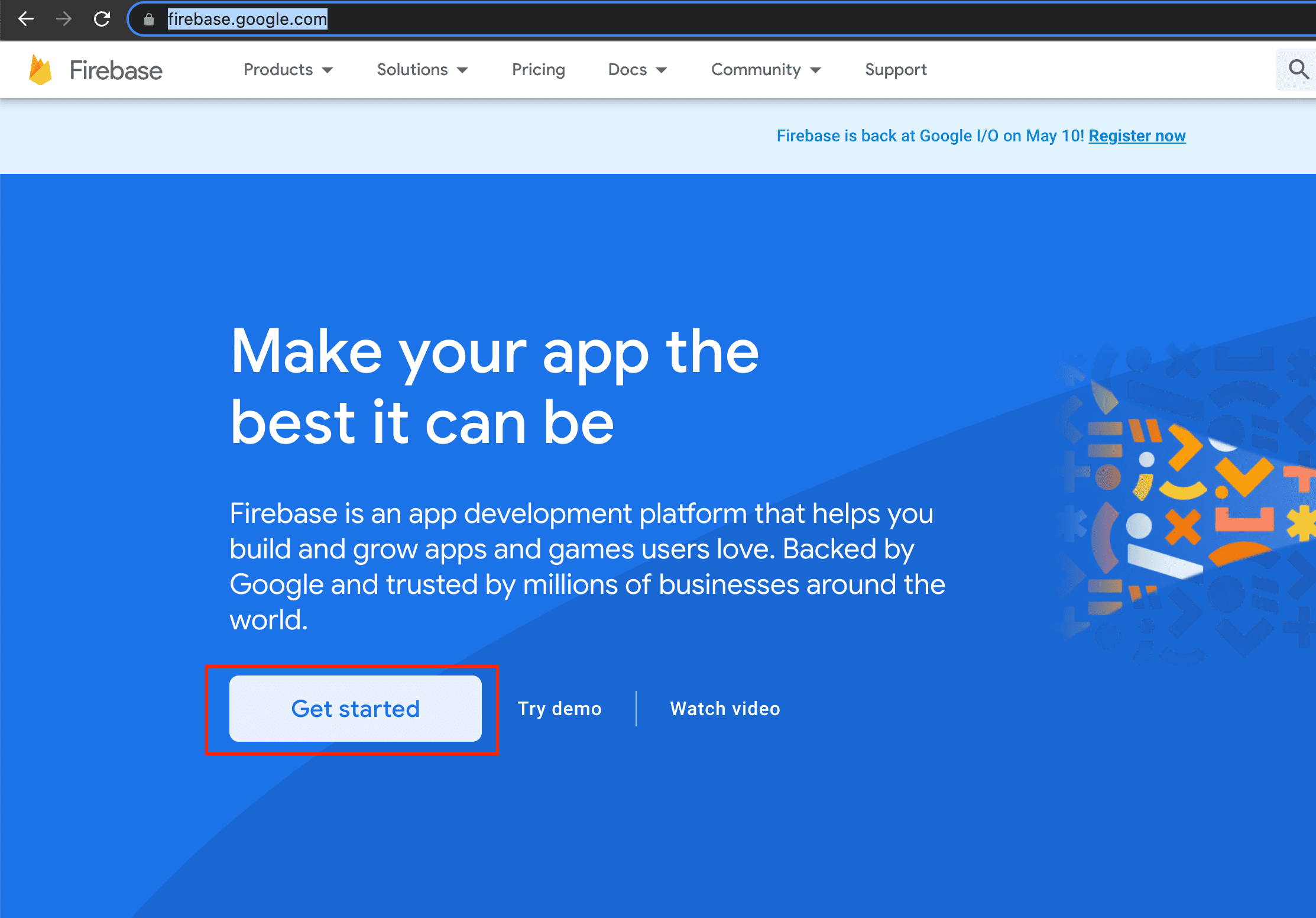
- Visit Firebase Console.
- Now click on Get Started button
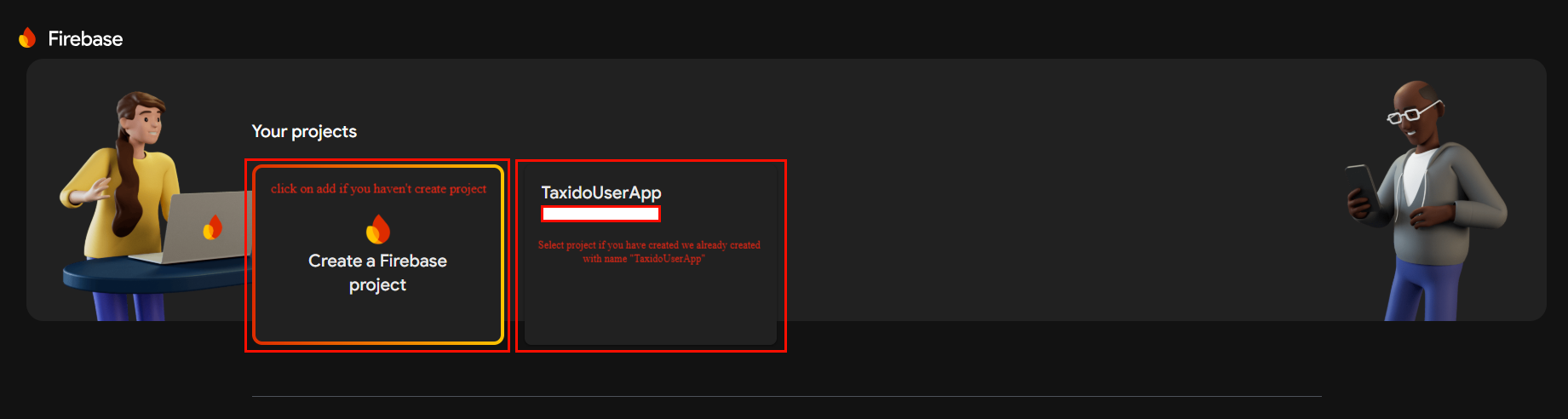
- Now select your project if created or create your project by click on + Add Project and google-services.json
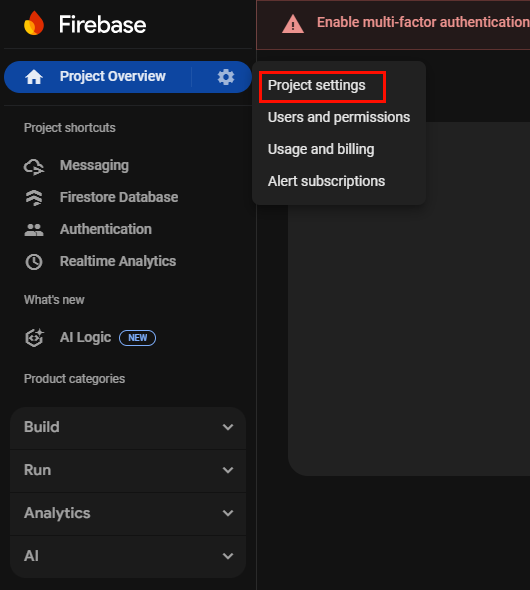
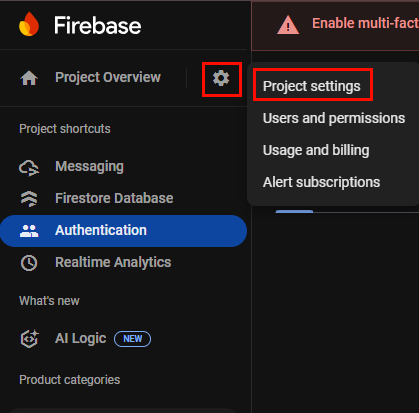
- On left hand side panel click on setting
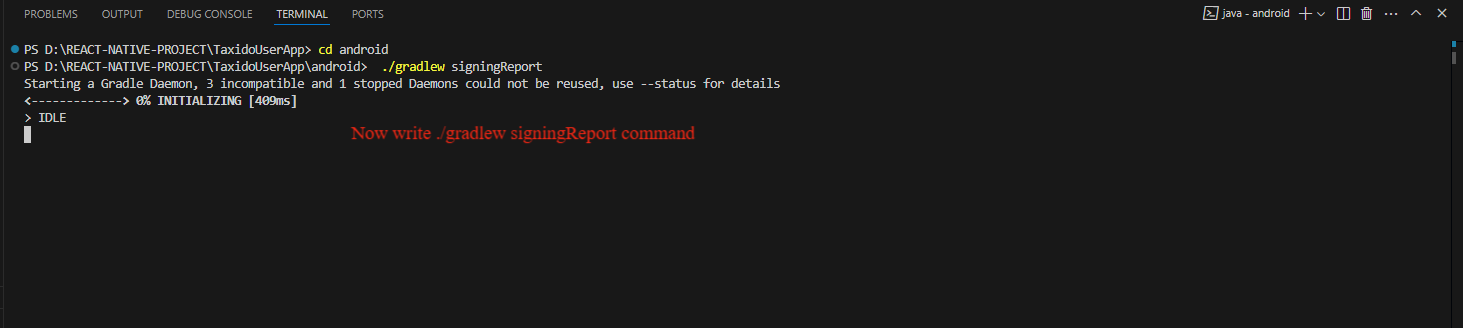
- Scroll down click on your package and add SHA-1 and SHA26 Key for debug and release.
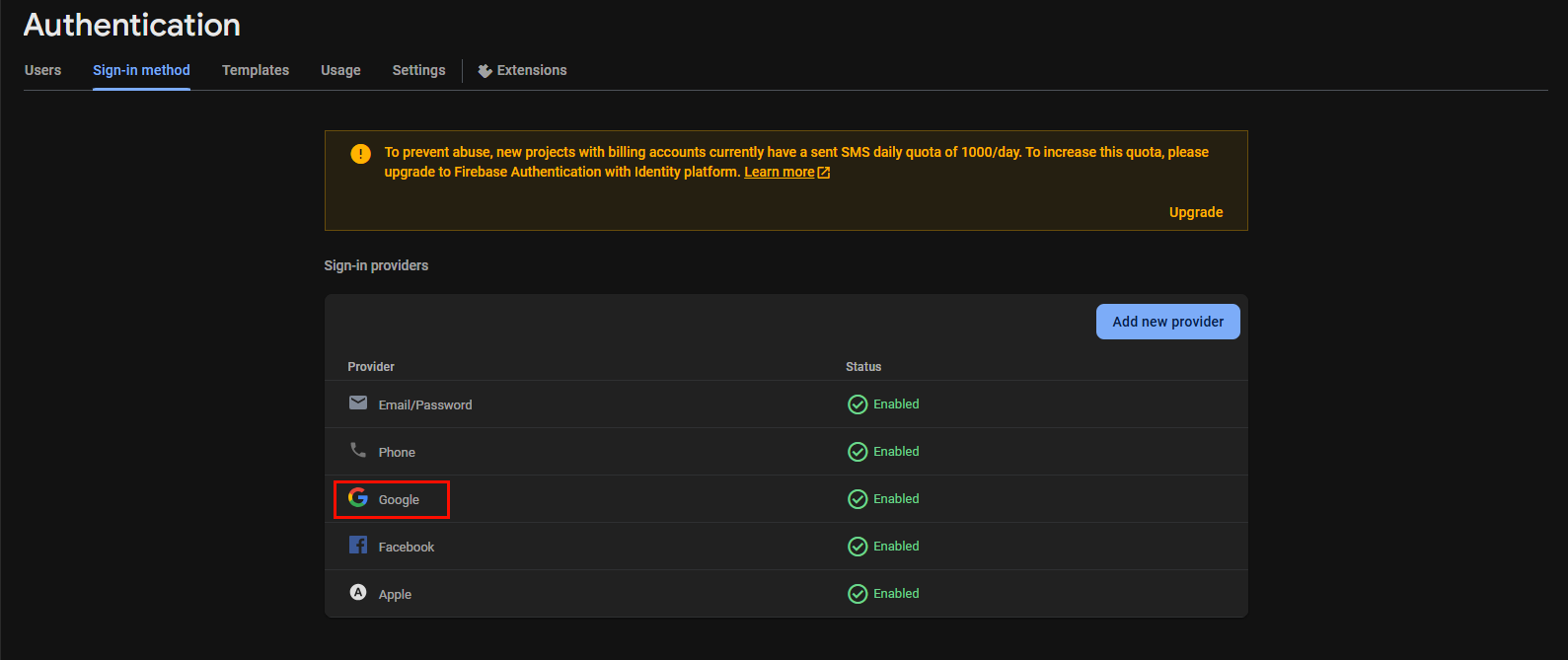
- In the Firebase Console, go to the Sign-in method tab and click on Google.
- Remeber to add all the dependencies in build.gradle which mention in above Firebase Setup
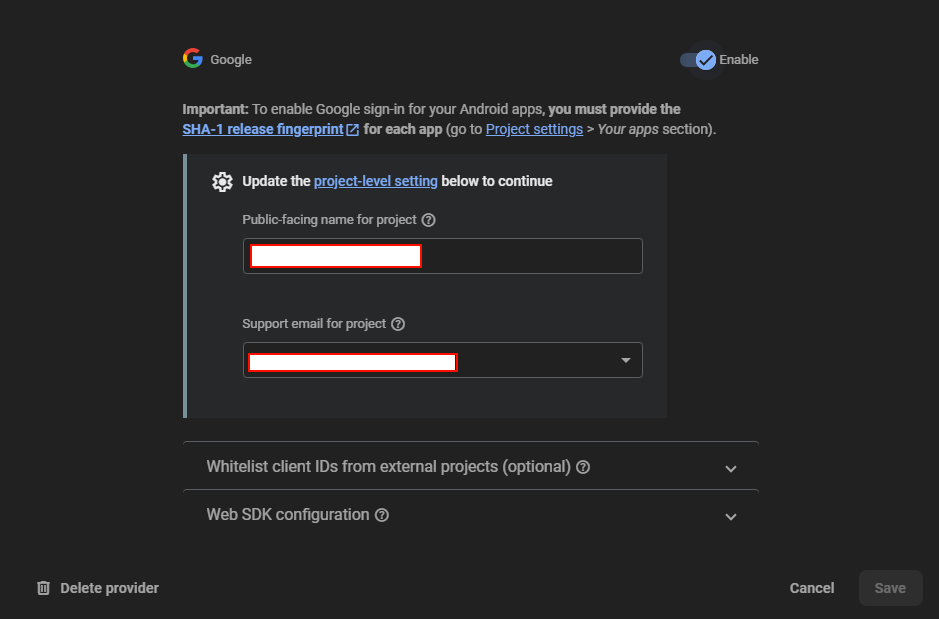
- Once you enable the option and click on the "Save" button, the Google Sign-In setup will be successfully completed.
NOTE : How to create Project and set google-services.json setup show in above Firebase Setup
On click Setting button pop open open. In that click on Project Settings
NOTE : How to generate SHA-1 and SHA26 steps are mention above. You can see in document left hand menu panel and click on Firebase SHA Key
Follow the steps below to set up Apple Login in your Firebase project:
- Open Firebase Console and select your project.
- In the left-hand menu, click Authentication.
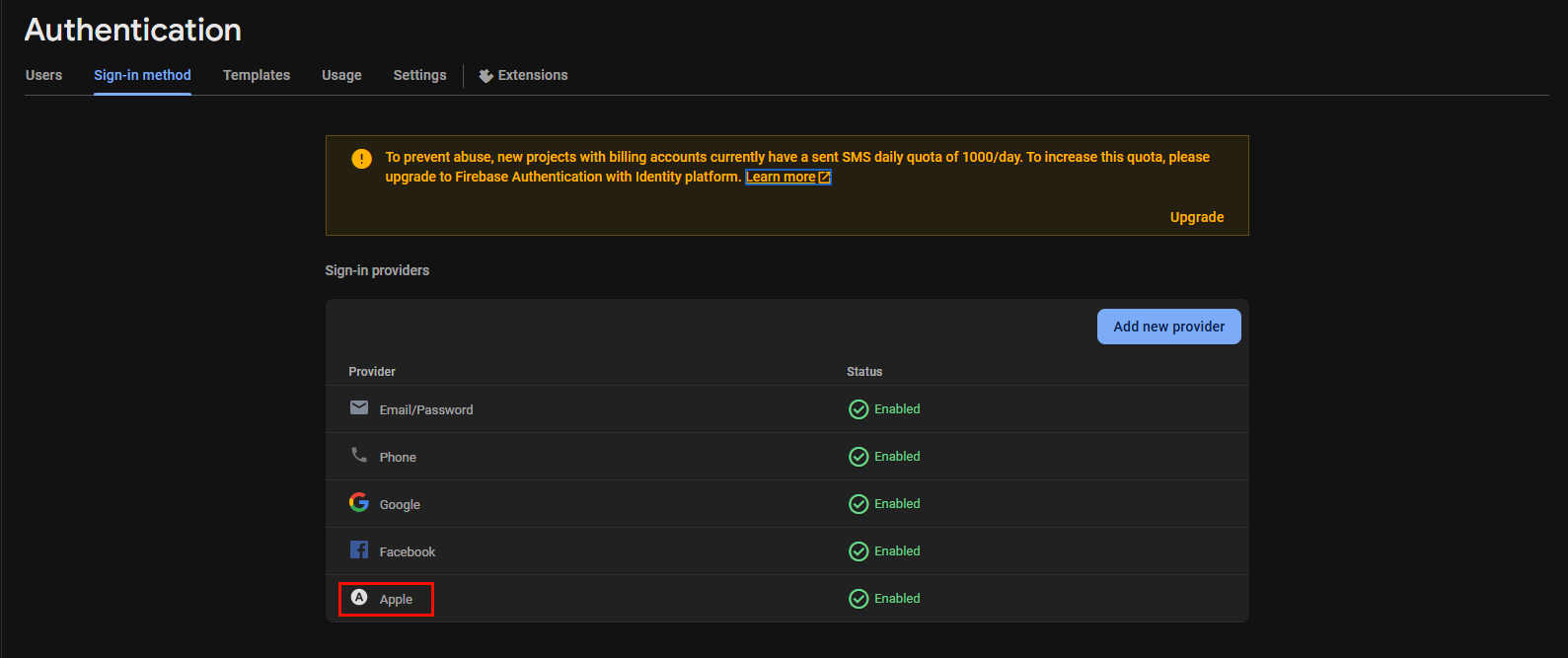
- In the Firebase Console, go to the Sign-in method tab and click on Apple.
- Find Apple in the list of providers and click the Edit (✏️) icon.
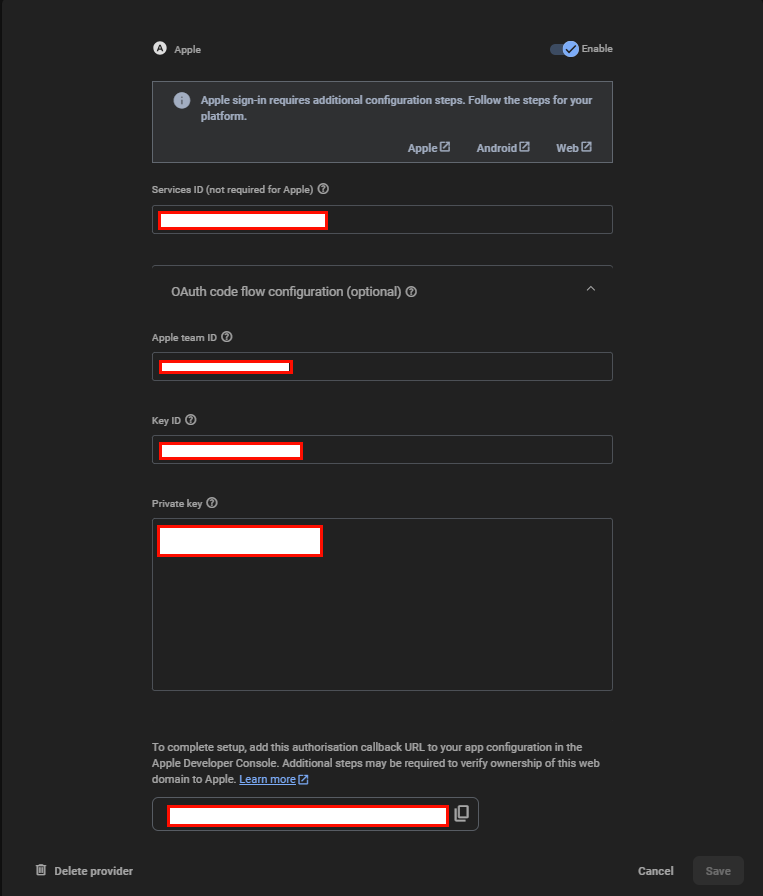
- Enable the toggle for Apple Sign-In.
- Enter the following required credentials from your Apple Developer account:
- Service ID
- Team ID
- Key ID
- Apple private key (from the .p8 file)
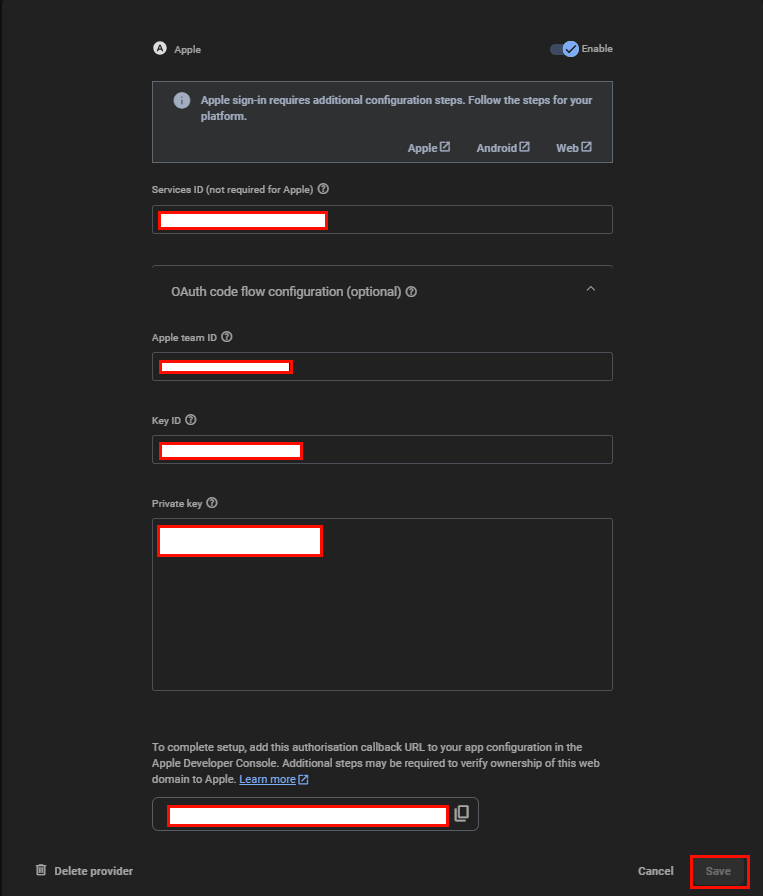
- Click the Save button.
- The Apple Login setup will be completed successfully.
Now go to the Firebase Billing: Firebase Billing.